Pair your EFTPOS terminal with ClubKey
Last updated: 2 November 2026
ClubKey sends the amount to the EFTPOS terminal on your front desk and records the bank's answer, so nobody types amounts into the pad or receipt numbers into ClubKey. It works with the terminals Australian banks supply through Linkly Cloud (formerly PC-EFTPOS). The money goes to your own bank through your own merchant facility, exactly as it does today; ClubKey only drives the pad and never sees the card.
Before you start
- A Linkly Cloud terminal from your bank, switched on and connected to the internet (your bank or Linkly can confirm it is a cloud terminal).
- The Linkly Cloud username and password that came with the terminal. If you do not have them, ask your bank or Linkly Support on 1300 780 788.
- A ClubKey login with the Owner or Manager role, on a computer at the desk.
Step 1. Get a pair code from the terminal
- On the terminal, open the menu (usually the Func or Menu key) and choose Pairing, Cloud pairing or Pinpad pairing.
- The terminal shows a pair code. It is valid for a few minutes and changes each time, so do this step last, when you are ready to type it in.
Step 2. Pair it in ClubKey
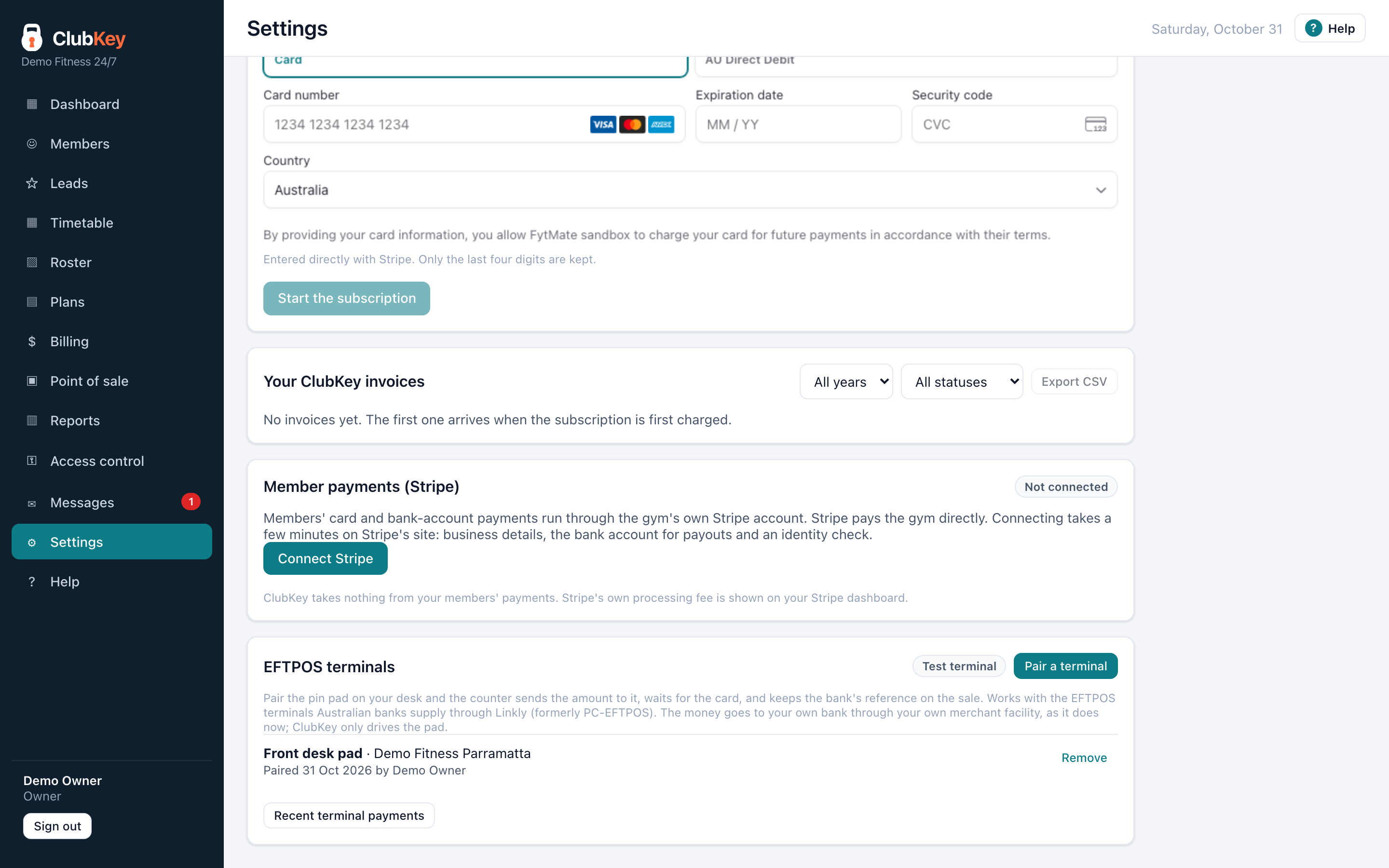
- In ClubKey, open Settings › Payments and find EFTPOS terminals.
- Press Pair a terminal.
- Give the terminal a name you will recognise at the counter, such as Front desk. If your club has more than one site, choose the site it sits at.
- Enter the Linkly Cloud username and password, then the pair code from the terminal.
- Press Pair. The terminal appears in the list with who paired it and when.
Your Linkly login is used once, to pair, and is not kept. ClubKey stores only the pairing itself, encrypted, so the terminal stays connected until you remove it.
Step 3. Take a payment
- At Point of sale, choose Card terminal, then Send … to terminal. On a member's profile, choose EFTPOS and Send … to terminal.
- The amount appears on the terminal. The customer taps, inserts or swipes, and ClubKey shows what the terminal is showing while it waits.
- If the terminal asks a question, such as whether a signature is OK, answer it with the Yes and No buttons in ClubKey.
- When the bank answers, ClubKey records the result and the bank's reference (RRN) on the sale or the member's payment. A declined card is reported as declined, and nothing is recorded.
Receipts and refunds
- Under Settings › Payments › Recent terminal payments, every payment is listed with its result and bank reference. Receipt shows the receipt and Print prints it.
- A manager can press Refund on an approved payment to put the money back on the same card through the terminal, in full or in part.
If something goes wrong
- "The pair code was not accepted": get a fresh code from the terminal and try again straight away.
- "Linkly did not accept the username or password": check the login with your bank or Linkly Support.
- The terminal does not show the amount: check it is on, connected to the internet and paired (it shows Pairing press Enter when it is not). Remove the terminal in ClubKey and pair it again if needed.
- The page closed while a card was in flight: open it again and ClubKey picks the payment up where it was. Nothing is sent twice.
- Still stuck: email support@clubkey.com.au with your club name and the time of the payment.
Moving or replacing a terminal
Press Remove next to the terminal in Settings › Payments, then pair the new one. Past payments keep their records.